Quick Setup
Summary
The fastest way to a working setup is the Monitor Setup Wizard (Settings → Monitor Setup Wizard) — it guides you step by step through creating a sensor, a channel, and a monitor in one flow. The walkthrough below shows the same result done manually, using a Bluetooth beacon and a phone call alert as the example, so you can see what the wizard is doing under the hood or set things up your own way.
Details
Easier option: use the Monitor Setup Wizard in Settings — it guides you step by step through creating a sensor, channel, and monitor all in one flow. The steps below explain the manual approach for reference.
Step 1: Add a Bluetooth Sensor
- Go to Settings → Sensors
- Tap the + button to add a new sensor
- Select Bluetooth Beacon as the sensor type
- Give it a name (e.g., "Mom's Beacon")
- Tap Select Beacon to scan for nearby devices
- Choose your beacon from the list of detected devices
- Set the alert delay. This is the whole time from the beacon last being heard to the alert reaching you, and Bluetooth needs about the first minute of it just to be sure the beacon is really gone — so anything under about 60 seconds gives you no extra confirmation. The default is 90 seconds; our suggestion is 90–150 depending on how much a false alarm would cost you. See Debounce.
- Tap Save
Tip: the Bluetooth device should be something the monitored person always carries, like a beacon attached to their keychain or bag.
Step 2: Create a Phone Call Channel
- Go to Settings → Channels
- Tap the + button to add a new channel
- Select Phone Call as the channel type
- Give it a name (e.g., "Call Caregiver")
- Enter the phone number to call
- Tap Save
- Grant phone permission when prompted
Step 3: Configure a Monitor
- Go to Settings → Monitors
- Tap the + button to add a new monitor
- A dialog asks for a name first (e.g., "Home Safety") — type it and confirm. The monitor's edit screen opens
- Select your Bluetooth sensor from the list
- Select your Phone Call channel from the list
- Tap the back arrow. The monitor edit screen has no Save button — it saves what you chose as you leave it. See How Monitors Work
Step 4: Start Monitoring
- Return to the main screen
- Tap Start Monitoring
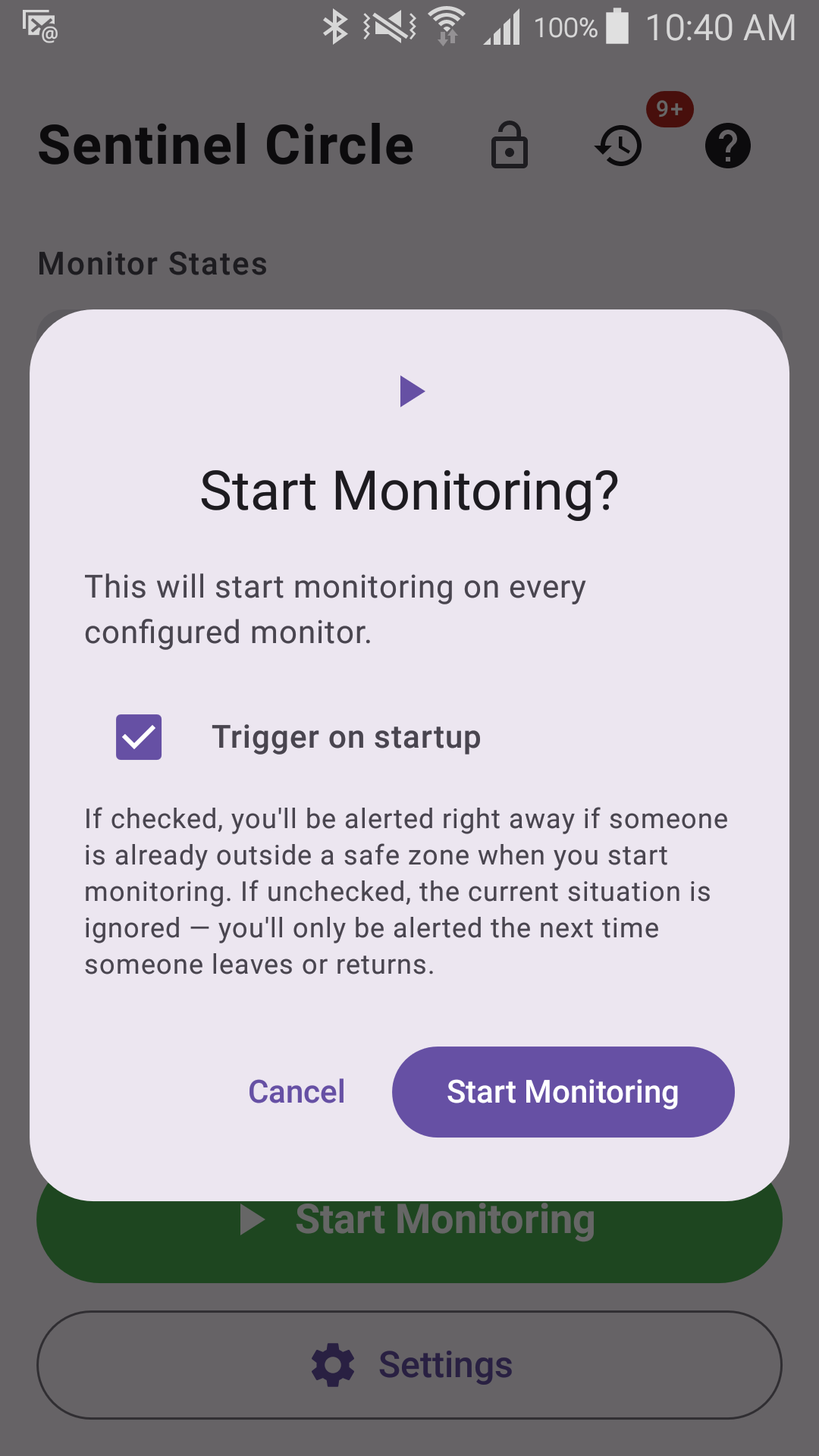
- The status will show "ON" when active
That's it! When the Bluetooth device goes out of range, the app will call the configured phone number.
Backup and Restore Configuration
Once you have everything configured, export your settings so you can quickly restore them later if you reinstall the app or set up a new phone.
- Go to Settings → Application → Export Configuration
- Check "Include passwords" if you want your email login details included in the backup
- Save or share the exported backup file
- To restore: Settings → Application → Import Configuration, then select the backup file
Tip: keep a copy of the exported file in a safe place. After reinstalling or on a new phone, importing the backup restores all sensors, channels, and monitors in seconds instead of reconfiguring from scratch. See Backing Up & Restoring Your Configuration for the full details.