Backing Up & Restoring Your Configuration
Summary
Export saves your entire setup — every sensor, channel, and monitor — to a single file you can keep somewhere safe or move to a new phone. Import loads one back. Both live in Settings → Application, and both are a Standard-tier feature (upgrading unlocks them).
Details
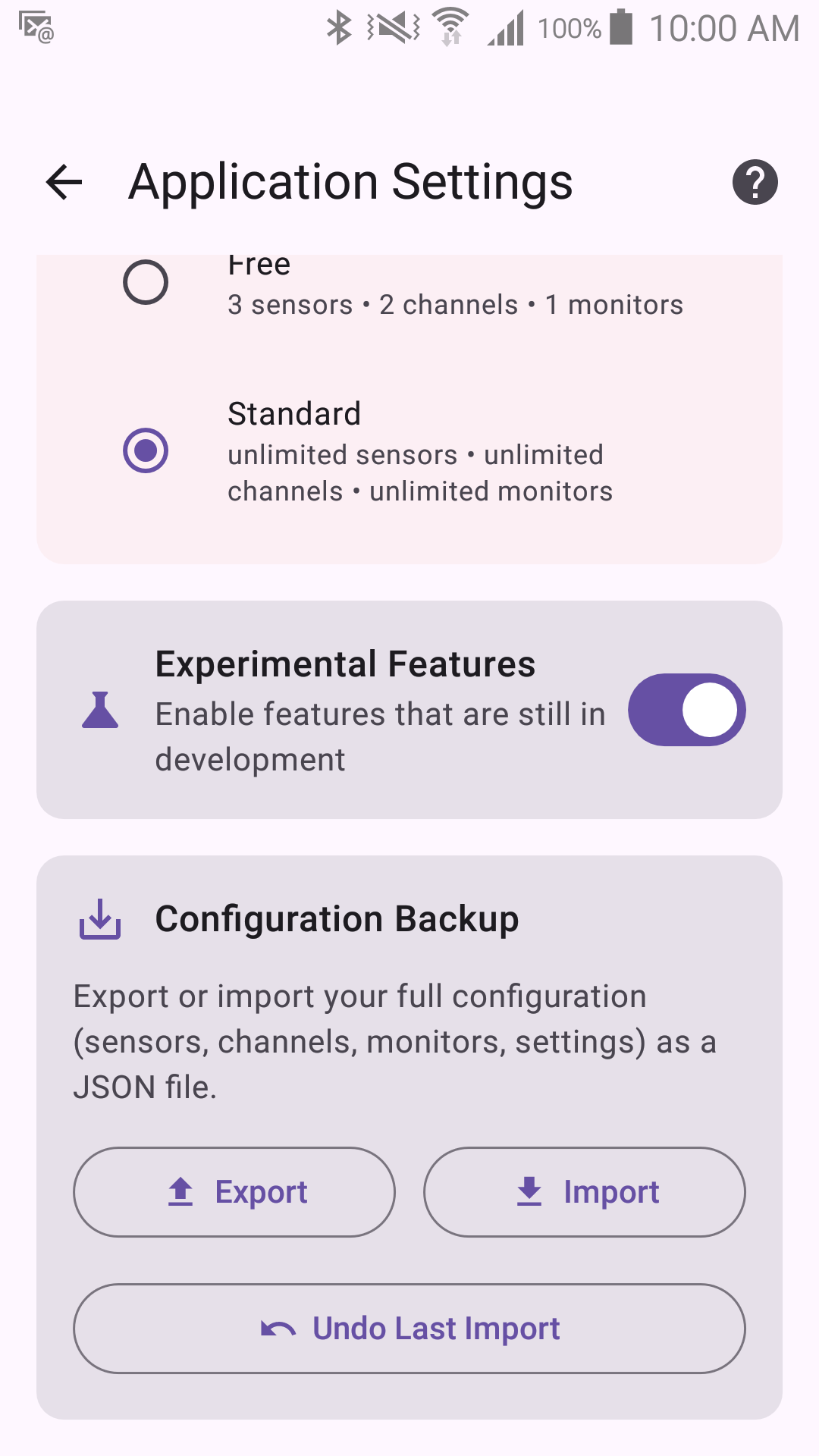
Export
Serializes your entire configuration to a JSON file.
- Passwords (email login details) are excluded by default. There's an opt-in checkbox to include them, with a warning — check it if you want the exported file to fully restore your email sensor/channel logins too, but treat the resulting file as sensitive if you do.
- A version number is embedded in the file so future app versions can still read older exports.
- Export works while monitoring is running — it only reads your configuration, so there is no need to stop first. Import and Undo are the two that are disabled while armed.
Import
Replaces your current configuration with one loaded from a backup file.
- The file is checked before you are asked to confirm — its size, that it is readable Sentinel Circle configuration, and that its version is one this app understands. A file that fails any of those is refused outright, and you never see the "Replace all settings?" prompt for it.
- You'll see that confirmation dialog before anything is overwritten.
- A file larger than 512 KB is rejected — this only matters for a hand-edited or corrupted file; a normal exported configuration is far smaller.
- If the file included passwords, they're restored into secure storage, not left sitting in the visible configuration.
- After importing, Sentinel Circle checks whether anything in the new configuration needs a permission you haven't granted yet, and prompts you if so.
- If the imported file referenced a sensor or channel that no longer exists (for example, from an older export), Sentinel Circle cleans up the dangling reference automatically and tells you it did so. If your plan's limits meant some of the imported items could not be switched on, it reports that separately — the two are different things and are counted separately.
- Import is disabled while monitoring is actively armed — stop monitoring first.
Undo
After an import, an Undo button appears — tapping it restores exactly the configuration (and passwords) you had immediately before the import. It is not on a timer: the undo point lasts until you use it or until the next import replaces it, and it survives closing and reopening the app or restarting the phone. Only one level of undo is kept.
A note on the Free tier
Export/Import/Undo are Standard-tier features and are hidden on the Free tier in normal use.