Bluetooth Sensor
Summary
Fires an alert when a specific Bluetooth device — like a small beacon on a keychain — goes out of range. Ideal for a beacon or wearable the person always carries.
Details
How it works
Sentinel Circle keeps one continuous Bluetooth scan running, and listens in on it for your device. If the device hasn't been heard for about 45 seconds, that starts the out-of-range check rather than finishing it: a Bluetooth scan can go quiet because the device left, or because the phone's Bluetooth stack stopped delivering results. Sentinel Circle then runs a short listening test to prove the scan is still healthy and your device really is missing, which takes about another 15 seconds. So the earliest an absence can be confirmed is roughly a minute after the last sighting.
If Bluetooth is switched off
Switching Bluetooth off does not raise an alert. With the radio off Sentinel Circle has no information at all: it cannot tell "the beacon is out of range" from "I cannot listen". It holds the last state it was sure of, and neither an alert nor an all-clear follows until Bluetooth is back on.
The sensor's row on the main screen reports the fault instead. It also means switching Bluetooth off is not a way to test the sensor — use the tin trick below, or carry the beacon out of range.
How to choose a beacon
Tap "Select Beacon" to scan for nearby Bluetooth devices. You'll see both paired devices and nearby beacons — pick the one you want to monitor from the list. You can't type in the beacon's name or address by hand — you always pick it from the Select Beacon scan.
There's no screenshot of this screen in this manual: a real scan lists the actual Bluetooth addresses and names of whatever devices are nearby when the screenshot was taken — your neighbor's earbuds, your own phone, a car's hands-free kit — and there's no way to fake or mask that without showing a screen that doesn't match what you'll actually see. What follows describes the process step by step instead, closely enough that you should recognize each part when you open it.
The Select Beacon screen, step by step
The screen walks through three steps, shown as a short instruction line above the device list that changes as you go:
- Start. Tap Start and the app scans once for every Bluetooth device it can currently see — both devices your phone is already paired with, and unpaired nearby devices. Everything found is listed, strongest signal first, with a signal-strength bar next to each entry (a solid bar for a strong signal, a fading one as it weakens). Paired devices are labeled as such. This scan also becomes the "before" picture the next step compares against.
- Find what changed (the Compare step). Do something to the device you want to identify — walk it out of the room, turn it off, or use the tin trick below — then tap "Find what changed." The app scans again.
- Result. The list re-sorts to put what changed at the top: devices that vanished entirely come first, then devices whose signal dropped the most, then any device that's newly appeared. Devices whose signal didn't meaningfully change sit at the bottom. If the thing you moved was your beacon, it should be sitting at (or very near) the top. Tap it, then tap "Use This Beacon" to save it.
You can back out of the flow at any point — tapping the instruction step again after Result resets back to Start, in case the scan needs repeating.
Devices you can't tap. A device whose Bluetooth address is known to rotate periodically (most phones and watches — see the note on rotating addresses below) is shown grayed out and can't be selected, even if it's clearly the one that changed. That's deliberate, not a bug in the list — see below for why.
Not sure which device is your beacon?
If there are lots of Bluetooth devices nearby, it can be hard to tell which one is yours from the Start list alone — several may have generic or blank names. This is exactly what the Compare/Result steps above are for. A reliable way to trigger a clean, deliberate change:
- Find a metal tin with a lid — a biscuit or cookie tin works well.
- Line the bottom with some paper or cloth.
- Open the Select Beacon screen with your beacon next to the phone, and tap Start.
- Put your beacon inside the tin and close the lid — metal blocks the signal.
- Tap "Find what changed."
- The device that vanished or dropped the most is your beacon — tap it to select it.
- Take it out of the tin and tap "Use This Beacon."
Double-check your choice: after saving, your beacon will show up on the main screen's Sensors view. Try the tin trick again — this time take it to another room — and the signal should disappear completely, setting off your configured alerts.
Configuration
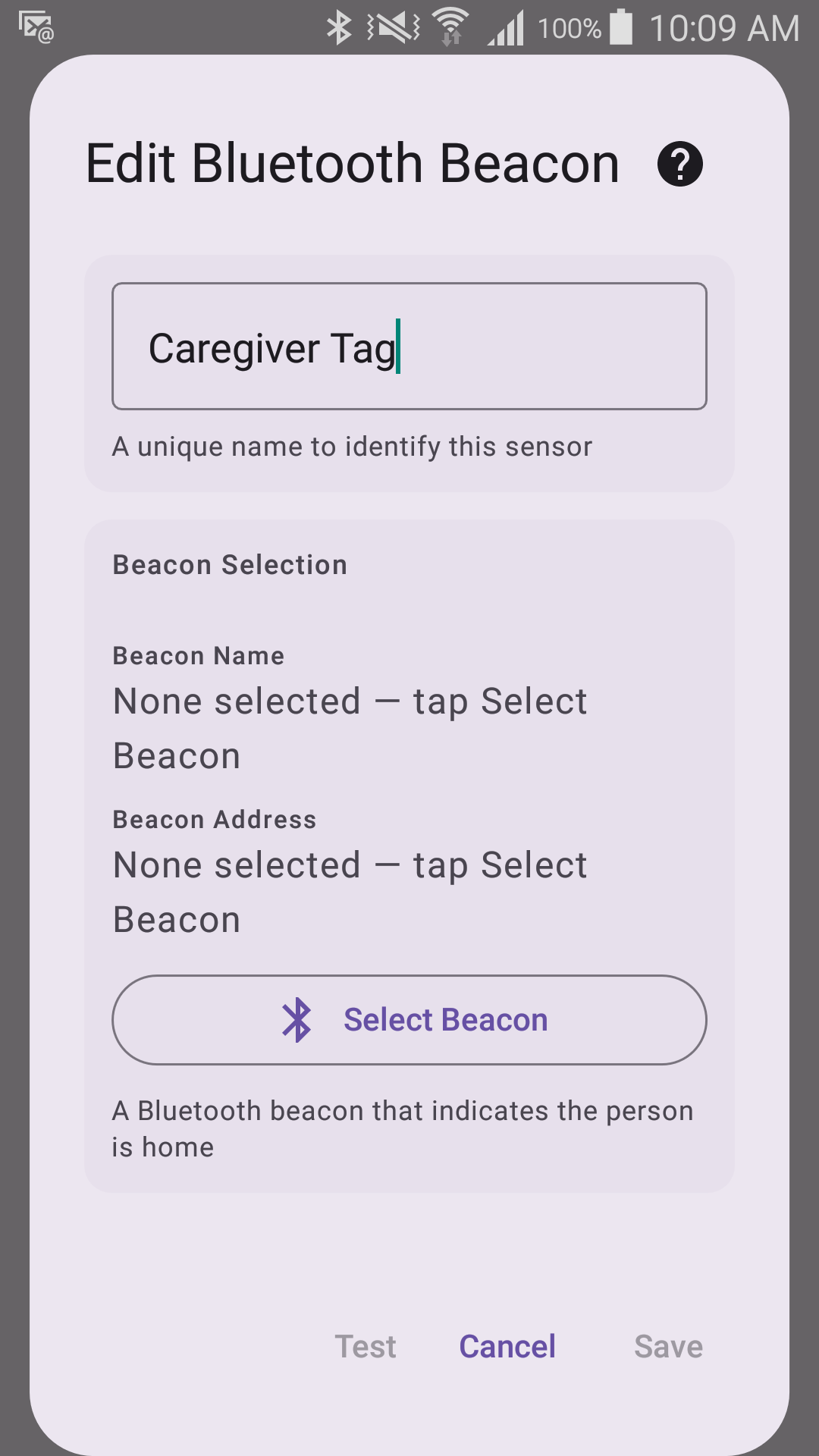
- Select Beacon — scans for and lists nearby Bluetooth devices.
- Beacon Name — the selected device's name (set automatically).
- Beacon Address — the selected device's unique Bluetooth ID (set automatically).
- Debounce Settings — Debouncing waits and double-checks before alerting; No Debouncing alerts as soon as Sentinel Circle can trust the reading, which for Bluetooth is still about a minute after the beacon actually goes (see above). See Debounce.
- Alert delay — the time from the beacon last being heard to the alert (default: 90 seconds, only shown with Debouncing on). It is an end-to-end budget, not an extra wait: the minute Sentinel Circle needs to be sure is counted inside the number you set, so setting 30 seconds still gives you an alert at about a minute.
Requires
- Bluetooth permission. On Android 12 and newer this is the "nearby devices" (Bluetooth scan) permission; below Android 12 Android requires location permission for Bluetooth scanning instead, and on Android 11 and below the location switch must also be on.
- A Bluetooth device the person carries with them.
A note on rotating addresses
Many phones and watches change their Bluetooth address every few minutes for privacy. A sensor pinned to an address like that stops working within about a quarter of an hour, so the device picker leaves those devices out of the list entirely — if a phone or watch you can see is missing from Select Beacon, this is usually why. Pick a dedicated beacon or tag instead, which keeps one fixed address.
If a device you configured earlier starts rotating its address, Sentinel Circle warns you about that sensor on the Sensors screen.
Trigger direction
By default this sensor alerts when the device disappears (Sentinel Circle Mode). It can be switched to alert when the device appears instead (Sentinel Gate Mode) — see Trigger Direction.