Email Sensor
Summary
Checks an email inbox for messages with a subject you choose. Handy for connecting Sentinel Circle to another alert system that sends emails — including a second Sentinel Circle phone.
Details
How it works
Sentinel Circle checks the inbox on a fixed schedule — every 30 seconds by default — looking at new messages in order, and alerts as soon as a check finds a matching one. There is no waiting or double-checking for email (unlike Wi-Fi and Bluetooth, this sensor never debounces; see Debounce), but the alert can still be up to one check interval behind the email arriving. Shortening the check interval shortens that gap.
Configuration
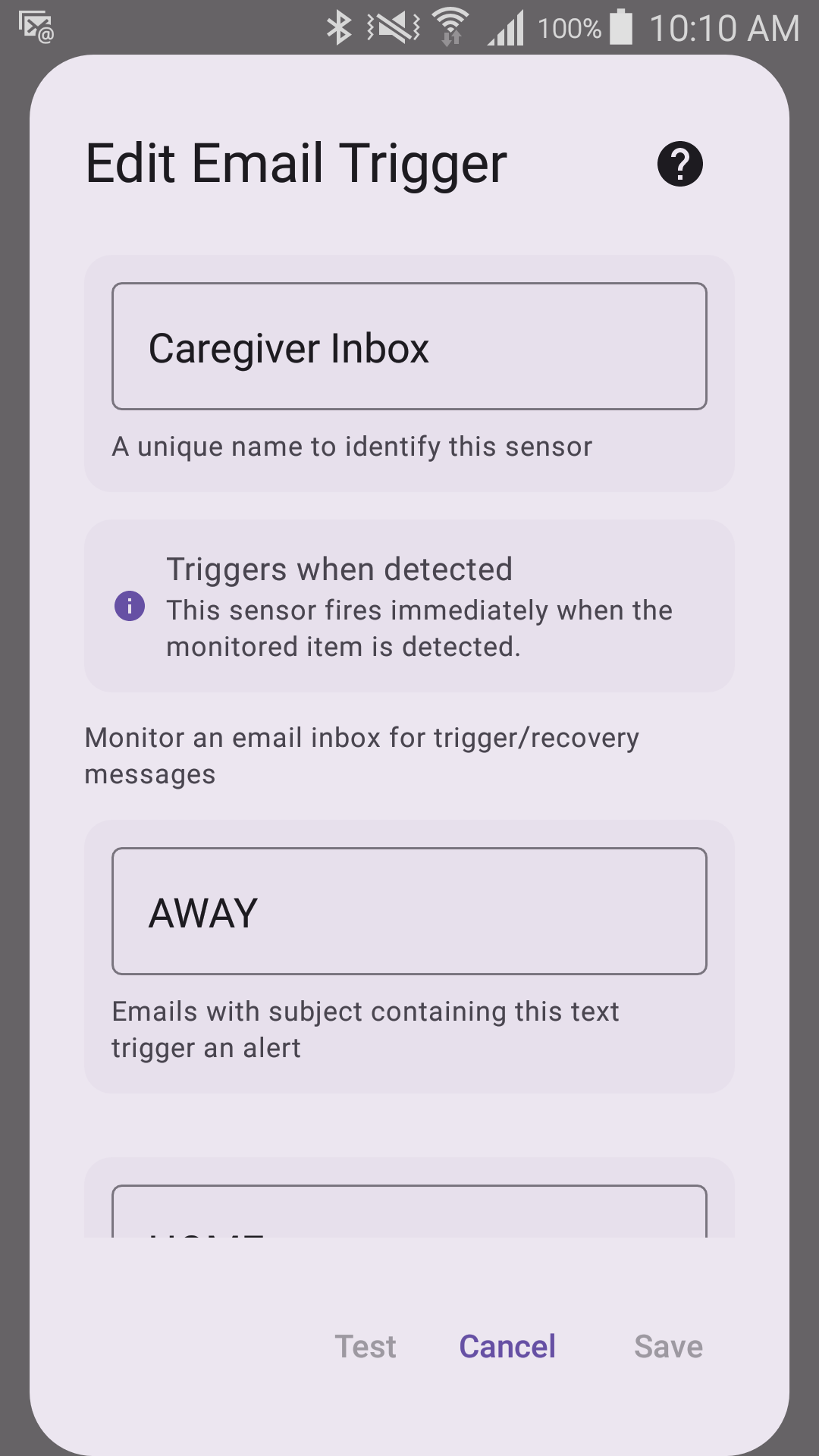
- Unsafe Subject Filter — the subject word meaning "person left" (default:
AWAY). - Safe Subject Filter — the subject word meaning "person returned" (default:
HOME). - Check Interval — how often to check the inbox (default: every 30 seconds).
- Mark as Read — automatically mark matched emails as read.
Tap Configure IMAP Server to enter the mailbox itself:
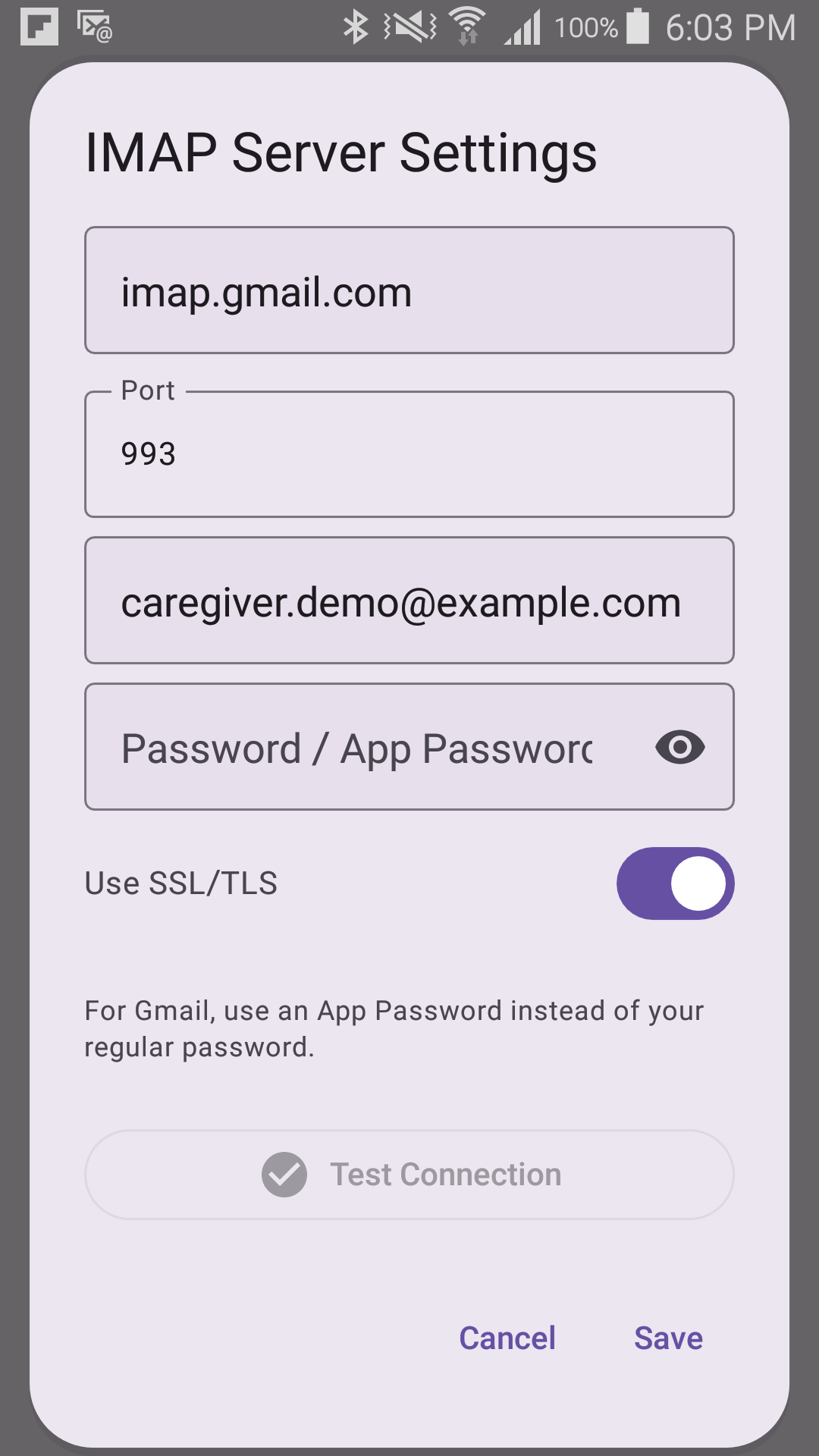
- IMAP Host — your email provider's incoming-mail server address (for Gmail:
imap.gmail.com). - Port — usually 993 for a secure connection (default: 993).
- Email / Username — the full email address for this mailbox.
- Password / App Password — see below. For Gmail, this is not your normal Gmail password.
- Use SSL/TLS — leave this on unless your provider tells you otherwise.
Use Test Connection before saving — it tells you right away if the server, username, or password is wrong, instead of finding out from a silently-failing sensor later.
Getting a Gmail App Password
If the mailbox is a Gmail (or Google Workspace) account, typing the normal Gmail password will fail. Google requires a separate, 16-character App Password for apps like this one — it's not optional, and it's not the same thing as the password used to sign in to Gmail on a phone or in a browser.
- The Google account must have 2-Step Verification turned on first. If it isn't already, set it up at myaccount.google.com/security — App Passwords don't exist as an option until this is done.
- Go to myaccount.google.com/apppasswords and sign in again if asked.
- Type a name to remember it by — "Sentinel Circle" is fine — and select Create.
- Google shows a 16-character password in four groups of four letters (spaces don't matter). Copy it.
- Paste that — not the regular Gmail password — into the Password / App Password field above.
This same App Password also works for the Email channel's outgoing (SMTP) settings, if that's also a Gmail account.
Requires
- An internet connection.
- A working email account, with an App Password if the mailbox is Gmail or Google Workspace.
Tip: The Email sensor is great for receiving alerts from a second Sentinel Circle phone. Set up Phone A to send emails on departure and return, and Phone B's Email sensor to watch for those emails. See the worked two-phone example.