Notification Sensor
Experimental feature. Turn on "Experimental Features" in Application Settings to use this. Still being refined — behavior may change.
Summary
Watches for notifications from a specific app (like Gmail) that contain a word you choose. Alerts the instant a matching notification appears.
Details
How it works
Sentinel Circle only looks at notifications from the app you choose, and checks their title against your chosen words. If a notification happens to match both your "safe" and "unsafe" words, it plays it safe and treats it as unsafe.
Configuration
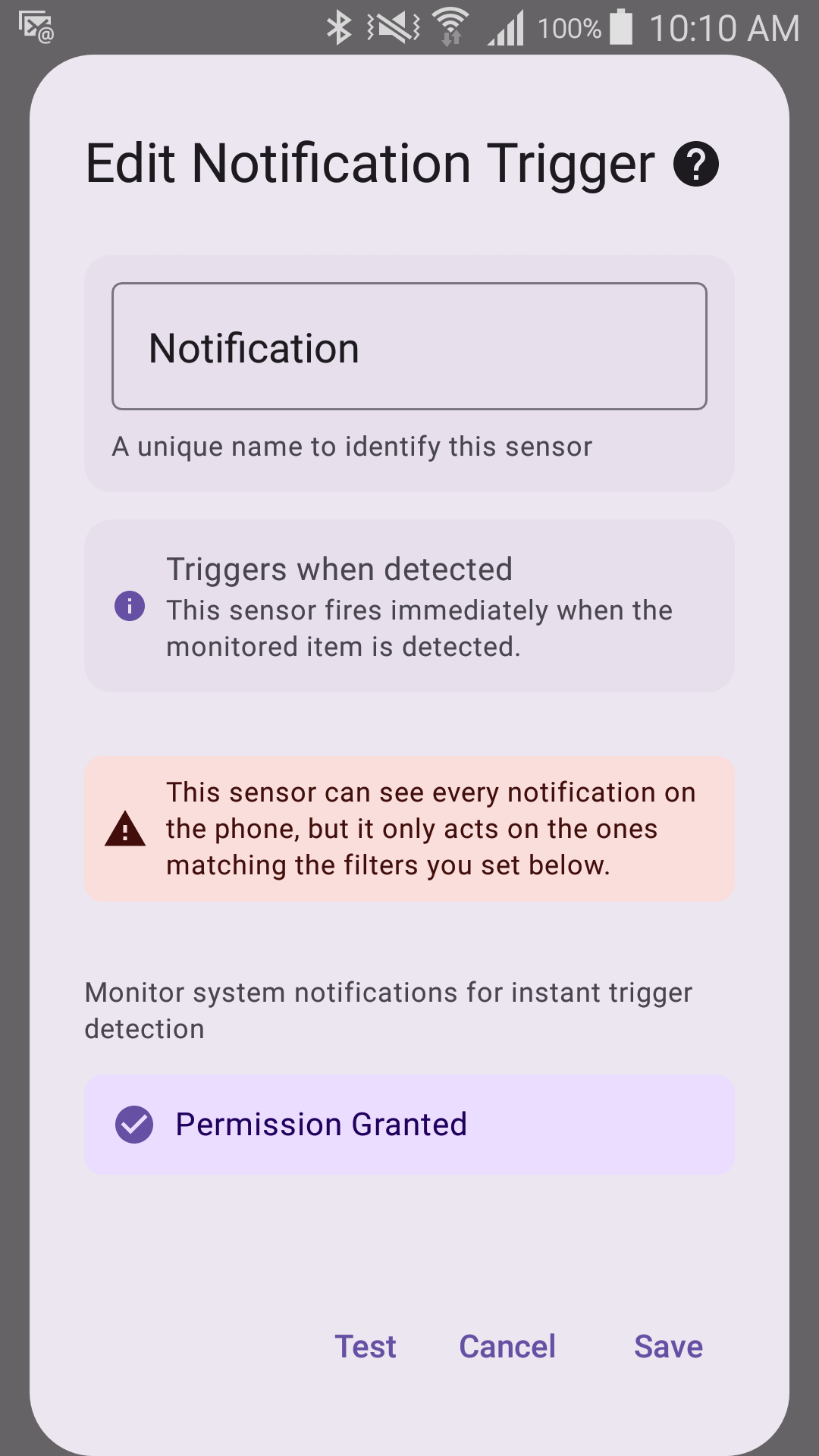
- App to Watch — which app's notifications to check (default: Gmail).
- Unsafe Filter — the title word meaning "person left" (default:
AWAY). - Safe Filter — the title word meaning "person returned" (default:
HOME).
Requires
- Notification Access permission (grant this in Background Permissions).
- Notifications turned on for the app you're watching.
Tip: The Notification sensor can watch for Gmail notifications from a second Sentinel Circle phone — choose Gmail as the app to watch and use matching subject words, the same idea as the Email sensor.
Like Email, this sensor always alerts instantly — it has no debounce setting (it's always in Sentinel Gate Mode, reacting to something arriving; see Trigger Direction).