App Info & Permissions
Summary
This section covers what Sentinel Circle is (and its safety disclaimer), the shortcut to Android's own permission screen for Sentinel Circle, the switch that unlocks experimental features, App Lock, and notes on keeping the app running reliably in the background.
Details
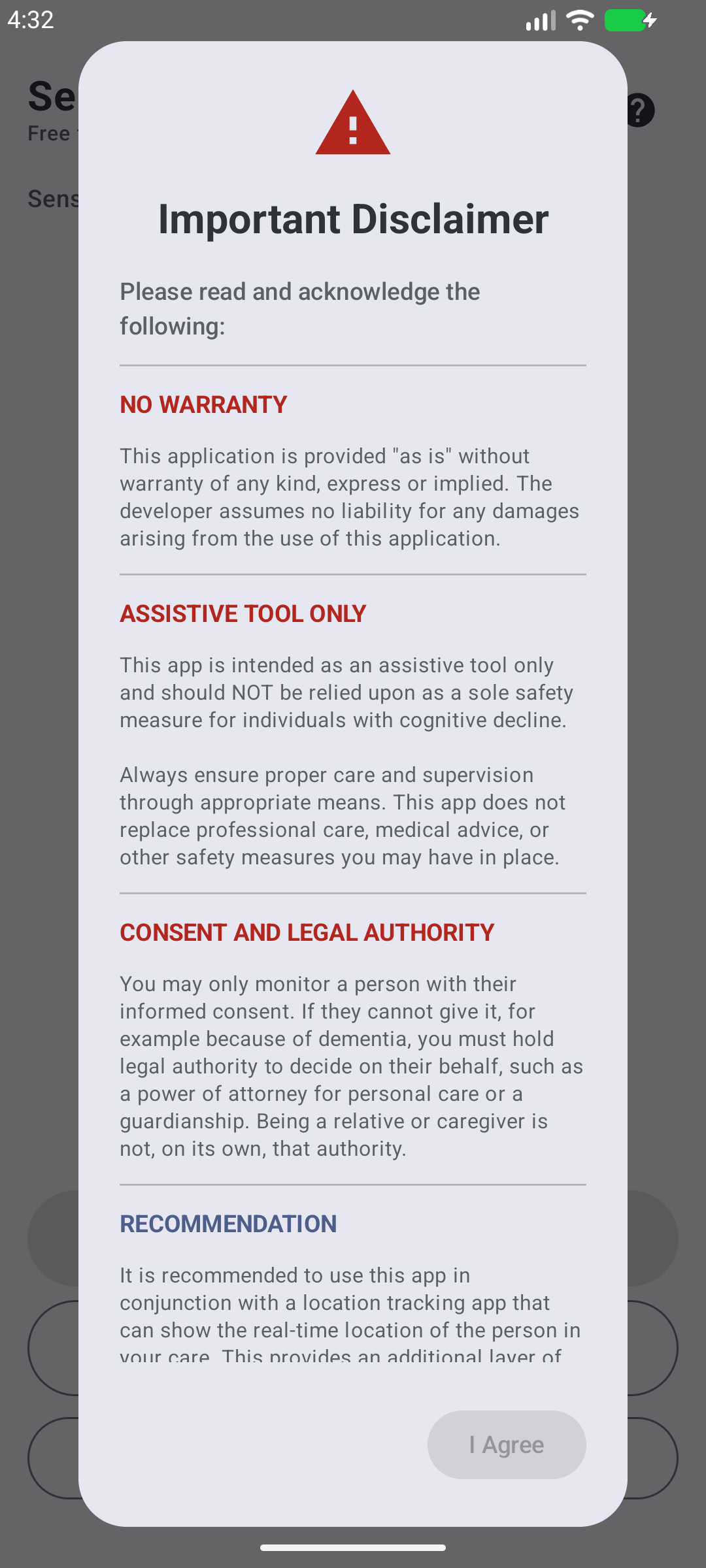
Important Disclaimer
Sentinel Circle is a helper tool — it should never be your only way of keeping someone safe. Alerts can fail to arrive because of a weak signal, a dead battery, a network outage, or a phone setting getting in the way. Always keep other safety measures in place too — alarms, a monitoring service, or family checking in.
The disclaimer also asks you to confirm that you have the right to monitor the person: their informed consent, or — if they can no longer give it, for example because of dementia — legal authority to decide on their behalf, such as a power of attorney for personal care or a guardianship. Being a relative or a caregiver is not, on its own, that authority. Accepting the disclaimer also accepts the Terms of Service and Privacy Policy, both linked from it.
What Sentinel Circle Does
Sentinel Circle helps you keep an eye on someone with memory difficulties (such as dementia or Alzheimer's) who might wander off without you knowing. It watches for signs they've left a safe area and alerts you right away, using the Sensor → Monitor → Channel pipeline described in the Introduction.
App Permissions
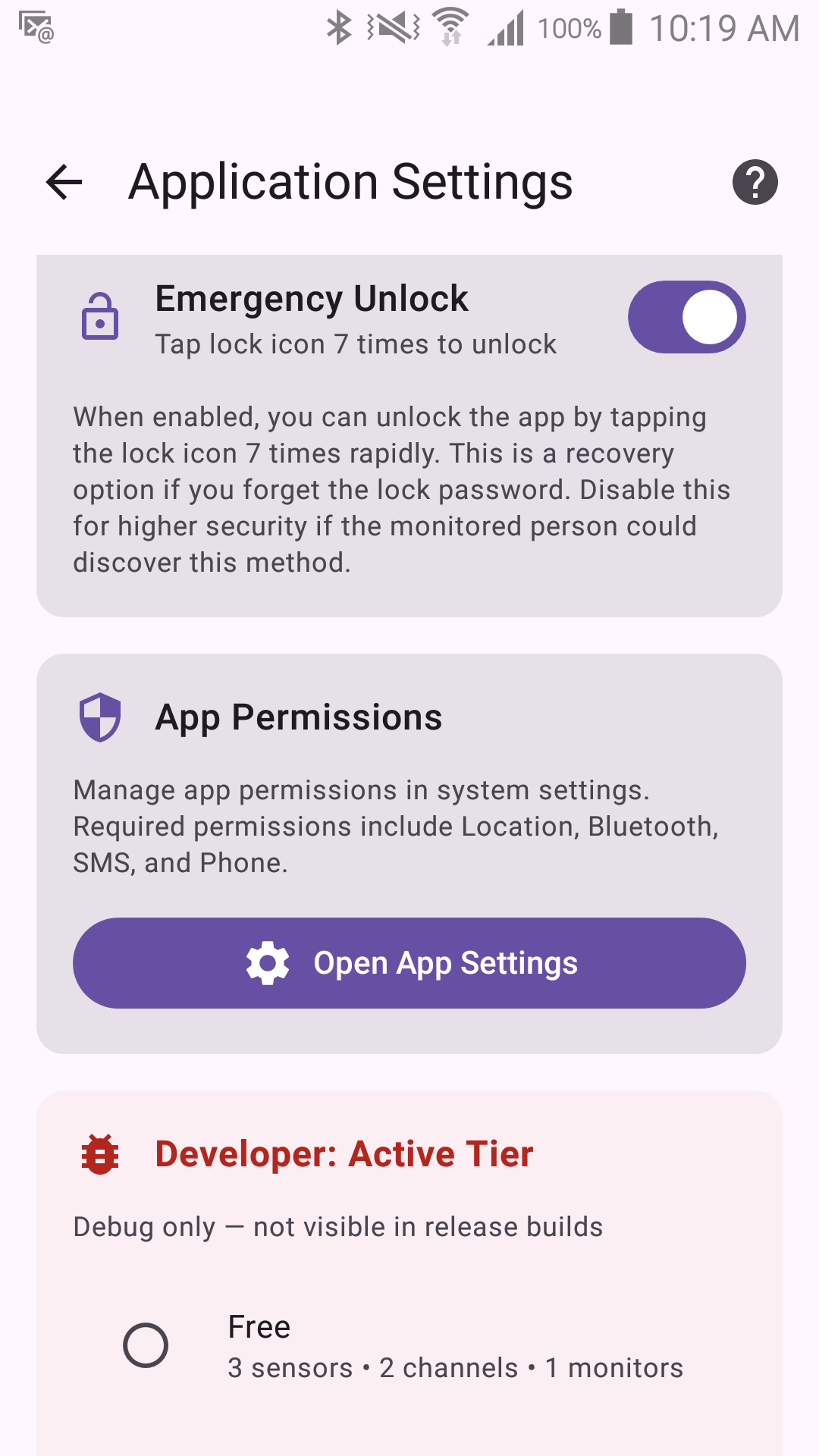
A single button that opens Android's own permission screen for Sentinel Circle, where you can see and change the permissions Android manages. It is a shortcut, not a checklist: it does not list what your configuration needs and it cannot grant anything for you.
The place that does tell you what is missing is Settings → Background Permissions. That entry counts the permissions your current sensors and channels actually need on your Android version — "3/5 permissions granted" — shows a warning icon when any are missing, and opens the setup wizard, which has a button per permission. See The Setup Wizard & Permissions.
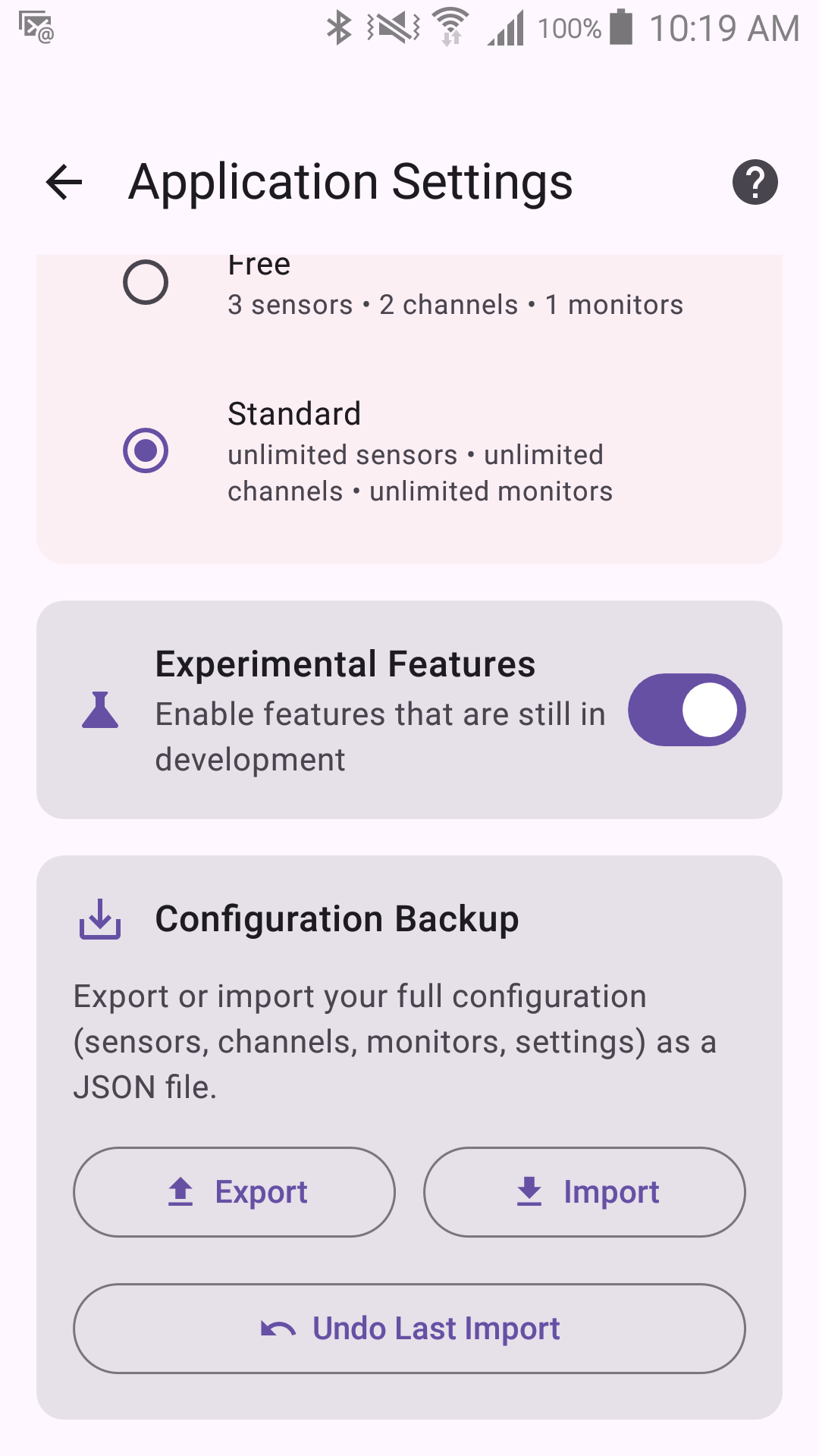
Experimental Features
A single toggle that unlocks features still being refined:
- Notification sensor
- Sentinel Area sensor
- WhatsApp channel
These are hidden until you turn this on. They work, but their behavior may still change in a future update — see each feature's own page for details.
App Lock
Lock the app to prevent the monitored person from stopping monitoring or changing settings — think of it as a parental control for monitoring.
To lock:
- Tap the lock icon in the top bar (shows an open lock).
- Enter a strong password (recommended: 6+ characters).
- Tap "Lock App".
Once locked, the lock icon turns red and the following are disabled: the Stop Monitoring button, the entire Settings area, the Event Log, and switching between tabs/views. Monitoring itself keeps running normally while locked — sensors, channels, retries, and alerts all work exactly as configured.
To unlock, either:
- Tap the "Unlock App" button and enter the password. This button is always there while the app is locked — it is the password route, and it does not go through the lock icon, or
- Emergency unlock (enabled by default): tap the lock icon 7 times within 3 seconds.
The lock icon and the Unlock App button are two different routes. While emergency unlock is on, the icon only counts your taps — it will not open a password box, so tapping it once and waiting looks like nothing is happening. If you turn emergency unlock off, the icon opens the password box directly instead.
Emergency unlock is a recovery option for when you forget the password. You can disable it for stronger security, but if you do and then forget the password, the only way back in is to uninstall and reinstall the app — which erases all settings.
The lock persists across app and device restarts; only the correct password or emergency unlock can undo it. Use a unique, strong password, and think carefully before disabling emergency unlock.
Power & Battery
If Bluetooth detection is unreliable when the screen is off, turn on "Keep Screen On" in Monitoring Settings — only while the phone is plugged into a charger.
Why this matters: to save battery, Android puts apps to sleep when the phone has been idle for a while with the screen off. If Sentinel Circle gets put to sleep, it can miss a departure or an alert. Some phone brands (Samsung, Xiaomi, Huawei, OPPO, OnePlus, and others) add their own extra battery-saving features on top of standard Android, which can stop Sentinel Circle even if you've already excluded it from Android's own battery optimization.
Most phones have two separate places that can stop background apps — both need to be set correctly, setting only one usually isn't enough:
- Battery settings — battery optimization / sleep exclusion.
- Power or Performance settings — background activity, app restrictions.
What Sentinel Circle does to keep running: a status notification tells Android monitoring is active; it briefly wakes the phone during each check so sensors and alerts can finish (short, automatic, you won't notice); retries are timed to go through even while the phone is asleep; and monitoring restarts automatically after the phone reboots.
How to set up your device:
- In Battery settings, turn off battery optimization for Sentinel Circle.
- In Power or Performance settings, set Sentinel Circle to "No restrictions", "Allow background activity", or "Don't optimize".
- On Samsung, Xiaomi, Huawei, OPPO, or OnePlus phones: also check that brand's own app power settings.
- Keep the monitoring notification visible — hiding it can make Android treat the app as less important.
- For Bluetooth sensors, keeping the screen on (while plugged in) gives more reliable detection.
Common misunderstandings:
- "Turning off battery optimization is enough" — not always; you usually need to check Power settings too.
- "Airplane mode doesn't affect monitoring" — it does; keep WiFi and Bluetooth turned on.
- "Location permission is only for GPS" — it's also required for WiFi and Bluetooth scanning to work.
Using a dedicated monitoring phone: if you're using an old phone just for monitoring (not as anyone's daily phone), a few extra settings help — turn on Keep Screen On (while plugged in) and Screen Saver (protects the display), turn the volume down (alerts still reach your other phone by SMS/Email), lock the app so it can't be changed by accident, turn off other apps and their notifications to avoid interference, and consider a timer plug if you want the phone to power-cycle on a schedule.