Monitoring Settings
Summary
This section controls how monitoring runs day to day: what the monitored place is called in your alerts, what happens when the app is opened, Bluetooth scan aggressiveness, and the device's screen behavior while monitoring.
Details
Location Setting
Despite the name, this has nothing to do with location permission. It is a free-text name for the place being monitored — "Home", "Mom's house" — and Sentinel Circle puts it into the alert messages it sends, so a caregiver reading a text knows which place it is about.
Location permission is granted in the setup wizard; see The Setup Wizard & Permissions.
Startup Behavior
Controls what happens when the Sentinel Circle app is opened, and nothing else. Two choices:
- Always Start — opening the app starts monitoring.
- Remember Last State (default) — opening the app resumes whatever state it was in when it was last closed.
Two things people expect to find here are somewhere else:
- Restarting after a reboot is automatic and is not configurable. If monitoring was running when the phone lost power, Sentinel Circle re-arms itself when the phone comes back up (and after an app update). You do not have to set anything for that, and this setting does not switch it off.
- Trigger on startup is a checkbox in the Start Monitoring dialog, not here. It decides whether a sensor that is already in the unsafe position the moment monitoring starts — the Wi-Fi network is not in range yet, say — counts as a real alert or is quietly taken as the starting baseline. The choice you make in that dialog is remembered as the default for next time.
Bluetooth Scan Mode
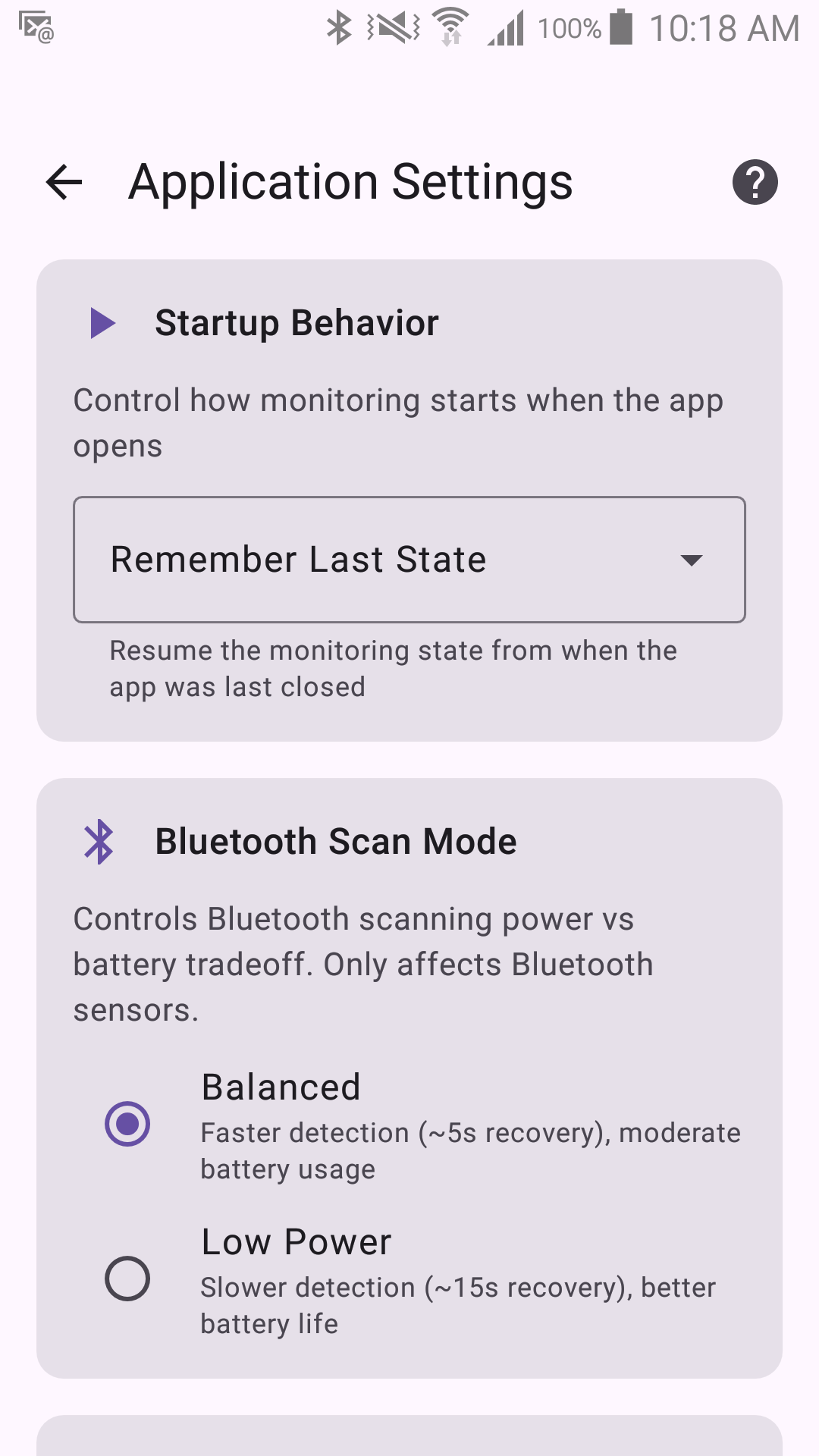
Tunes how aggressively the Bluetooth radio scans for configured beacons. A more aggressive mode detects a beacon going out of range faster but uses more battery; a lighter mode is gentler on battery but slower to notice a change. If you're using a dedicated, always-plugged-in monitoring phone, a more aggressive mode is usually fine — see Power & Battery notes.
Keep Screen On
Keeps the display on continuously while monitoring is active, instead of following the phone's normal screen-timeout. This measurably improves Bluetooth detection reliability on some phones, because Android throttles background BLE scanning more aggressively once the screen is off.
Only use this while the phone is plugged into a charger — it noticeably increases battery use.
Screen Saver
The Screen Saver dims what's actually shown after a period of inactivity, to protect the display from burn-in on a phone that's going to sit showing the same screen for a long time. It works whether or not "Keep Screen On" is set — the two settings are independent. See Screen Saver for the modes and options.